
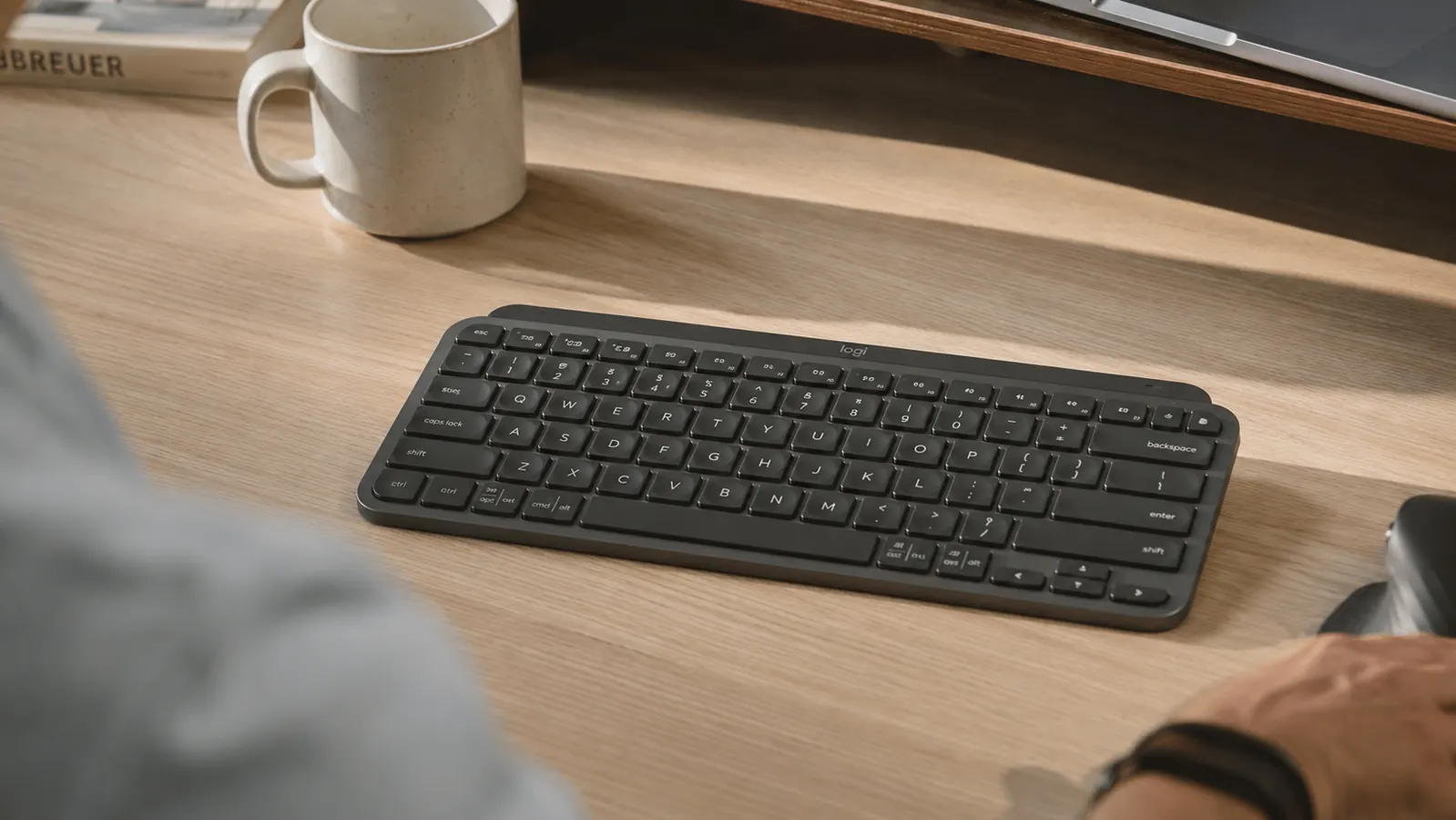
I picked up the Logitech MX Keys Mini in late spring of last year after my previous keyboard started losing keycaps. I type somewhere between 40,000 and 50,000 words a month across client work, internal docs, and notes. I have now been using this keyboard every single working day for just over twelve months. What follows is not a first-impression post. It is a report from someone who has genuinely worn this thing in.
The short version: this is one of the best keyboards I have tested for a home office that is not full of hobbyist mechanical keyboard enthusiasts. It does a small number of things very well. It also has one design decision I still wish Logitech had made differently. More on that in a moment.
The Quick Verdict
A refined, quiet wireless keyboard with a genuinely comfortable typing feel and seamless multi-device switching. The missing number pad is a deliberate trade-off, not a flaw, and it frees up more desk space than you expect. Battery life with the backlight off is exceptional. The one real gripe: no USB receiver in the box, only Bluetooth.
Amazon Check Today's Price →If you are typing all day and your wrists are starting to complain, this is the keyboard I reach for first.
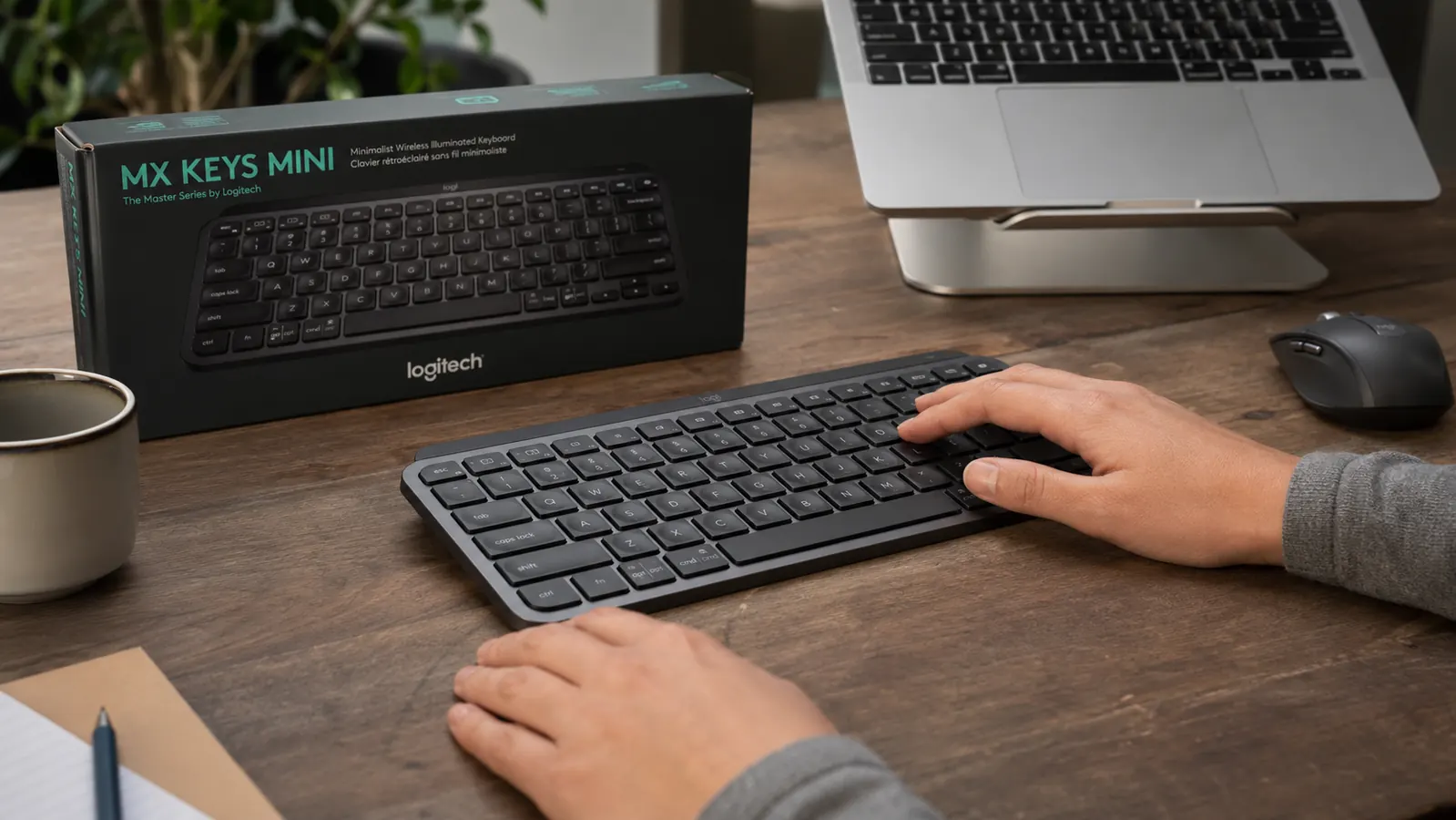
The MX Keys Mini has been on my desk for over a year. It pairs to three devices, charges via USB-C, and ships with per-key backlighting that adjusts to the room automatically. Check today's price before stock shifts.
Amazon Check Today's Price on Amazon →How I Have Been Using It
My setup at the time I bought the MX Keys Mini was a Windows desktop connected to a 27-inch external monitor, plus a MacBook Pro I use for a second client. I work from a spare bedroom converted into a home office, and I keep both machines live on the same desk most of the day. That multi-device situation is exactly where this keyboard was designed to shine, and it does.
I paired the keyboard to the desktop via Bluetooth channel one, the MacBook on channel two, and my personal iPad on channel three for reading and light writing in the evenings. Switching between them is a single tap on one of the three Easy-Switch buttons on the top-left corner of the keyboard. The transition takes roughly two seconds. I used to keep a second cheap keyboard under the desk for the MacBook. I got rid of it within a week of setting this up.
Over the past year I used the keyboard through two full seasons of heavy project work, a freelance contract that ran from September to January, and a period in February where I was putting in nine-to-ten-hour days consistently. I charged it three times total in twelve months. The battery meter in the Logi Options Plus software confirmed I was between 15 and 20 percent each time I plugged in, so I was not cutting it close. I am simply telling you that the charge lasted that long.
Typing Feel After 12 Months
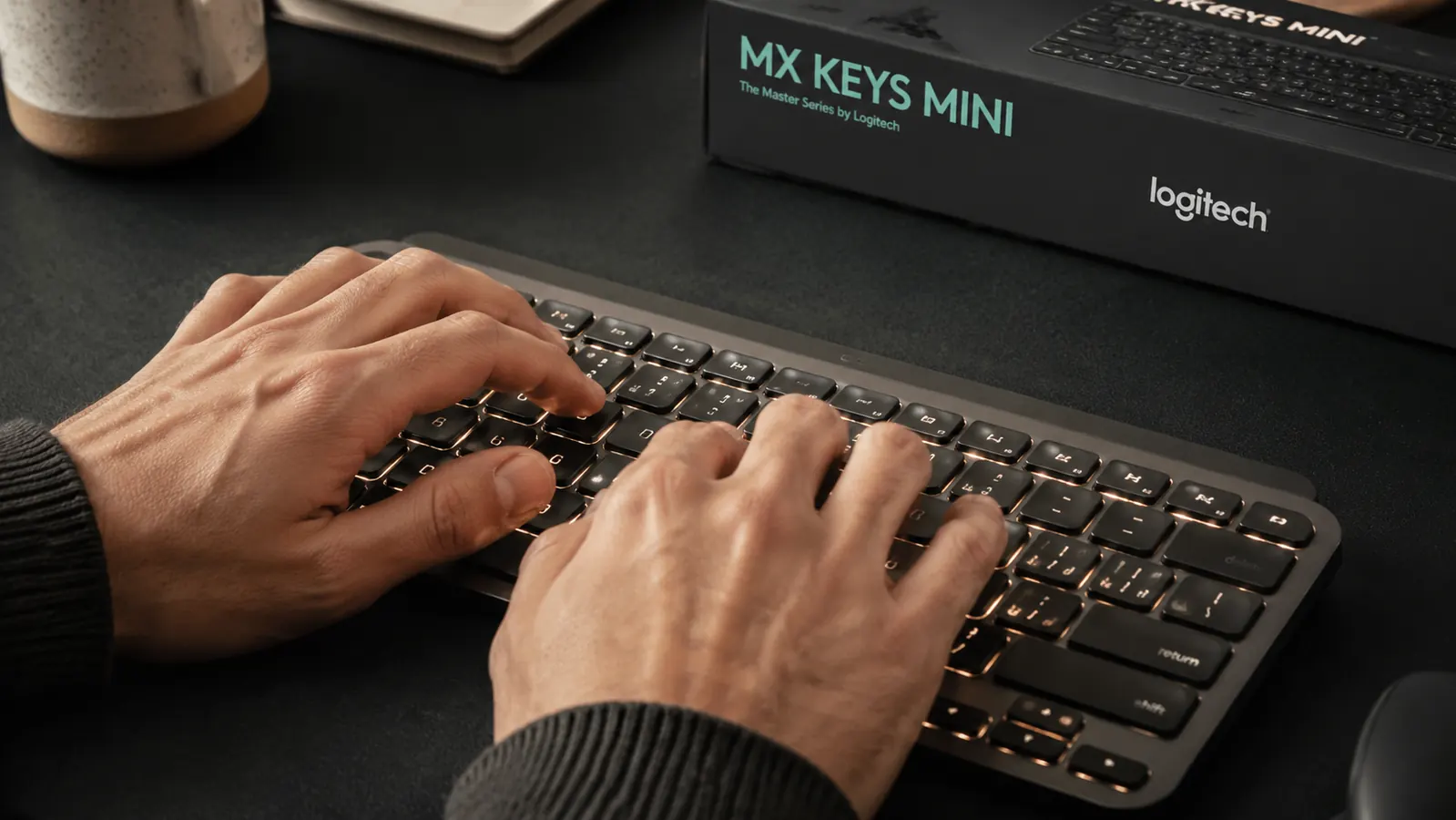
The MX Keys Mini uses Logitech's spherical concave key caps. Each cap has a small curved dish pressed into the top surface that catches the tip of your finger as it lands. When you first type on it, you may not notice the feature consciously. After a few hours, you start to realize that you are making fewer typos than usual, and you are not sure why. After a few weeks, typing on a flat-top keycap keyboard feels slightly imprecise by comparison.
Key travel is 1.8mm. That is shallower than a mechanical keyboard and slightly shallower than most budget wireless keyboards. If you are coming from a full mechanical switch with 4mm travel, the adjustment will take a day or two. If you are coming from a laptop keyboard, it will feel noticeably more substantial. I landed somewhere in the middle: I was using a mid-range wireless keyboard with about 2.2mm travel before this, and the difference was small enough that I adapted by the second morning.
Actuation force is light. The keys require about 45g to register, which is on the lower end for a desktop keyboard. Light-touch typists will find this immediately comfortable. Heavy typists who bottom out on every keystroke will hear a soft thud on each press. It is not loud, but you will hear it. My partner, who works in the same room two days a week, has never commented on it. I sat next to someone on a mechanical keyboard at a co-working space and felt quietly smug.
After twelve months of daily typing, the keycap legends are as crisp as the day the box arrived. I have seen cheaper keyboards wear down to blank gray squares within six months.
Backlight: Useful Feature or Battery Drain
The backlight is one of the more divisive features on this keyboard among people who write about it. Critics say it drains the battery. Fans say the proximity sensor that triggers it automatically is the best implementation they have seen. Both of these things are true at the same time.
The proximity sensor detects when your hands are near the keyboard and turns the backlight on. When you pull your hands away for more than a few seconds, it switches off. In a dark office, this works well. In a daylit room, the backlight is basically invisible anyway, so the sensor's activation is irrelevant. My home office gets direct afternoon sun from the west window, so I turned the backlight off entirely between 1pm and 5pm in the summer and rarely missed it.
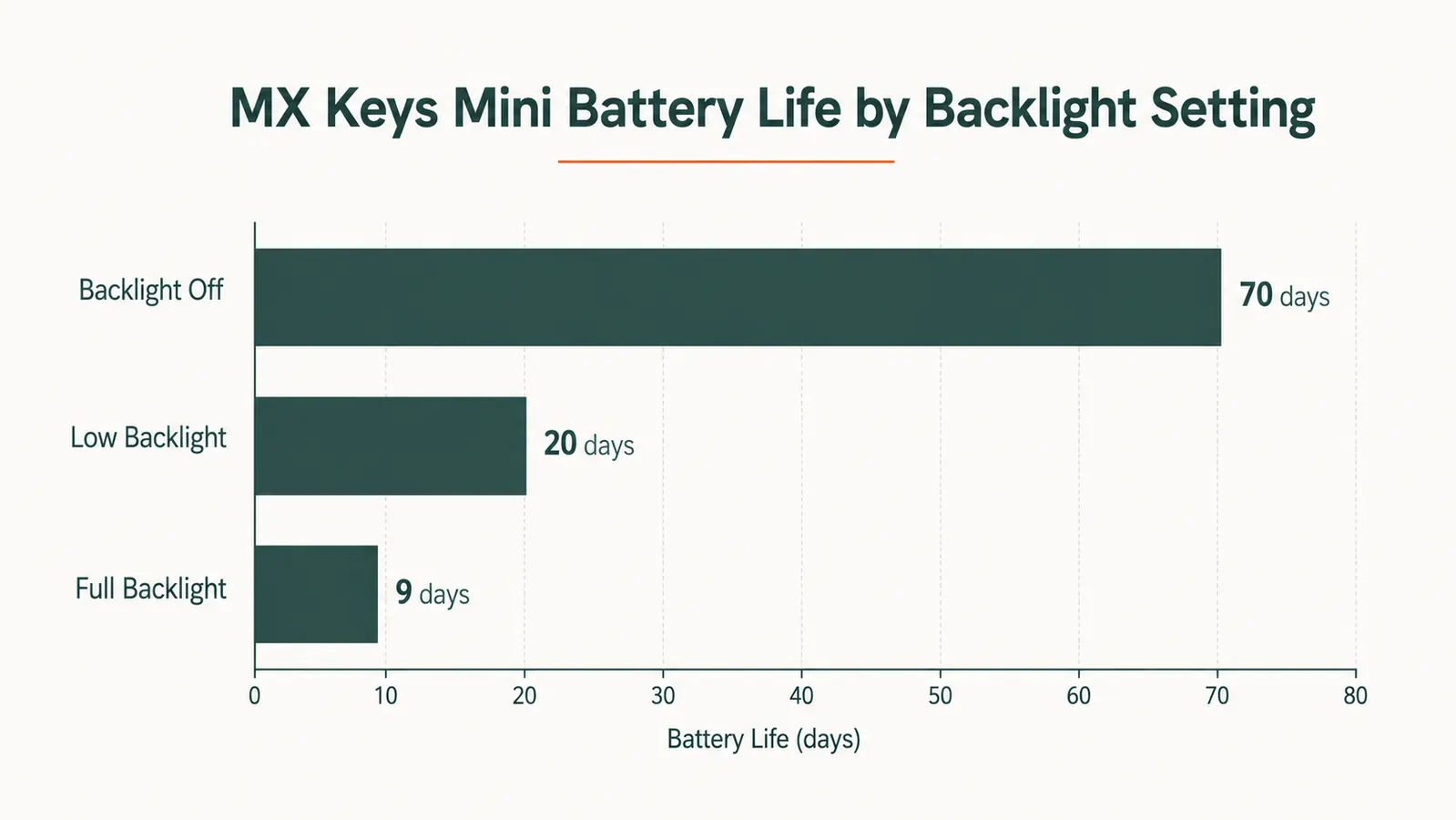
With the backlight completely off, my first charge lasted 68 days. That aligns closely with Logitech's claim of up to 70 days. On my second charge cycle, I left the backlight on low all the time and got 19 days. The third time I cranked it to full brightness for a week straight while testing, then dropped to medium, and hit empty at around day 22. If you leave the backlight on full time, plan to charge roughly every three weeks. If you turn it off, it becomes a once-every-two-months errand.
Multi-Device Switching in Real Use
I want to be specific about this because a lot of reviews mention multi-device switching as a bullet-point feature and stop there. Here is what it actually looks like in practice. In the morning, I sit down at my Windows desktop, the keyboard is already on channel one, and it connects within about two seconds of the first keystroke. I sometimes have a Zoom call on the MacBook at the same time. When I need to type something into the Mac, I tap channel two. The Mac picks it up in two to three seconds. Back to the desktop: one tap, two seconds.
After twelve months, the pairing has never dropped unexpectedly. I did have one instance where the Mac did not pick up the connection until I toggled Bluetooth off and back on from the menu bar. That happened once in a year. I am not going to count it against the keyboard. Every Bluetooth device I have ever owned has had a bad day once.
One note that matters: this keyboard ships with Bluetooth only. There is no USB dongle included. If your machine does not have Bluetooth, or if your Bluetooth is unreliable, this keyboard will not work for you out of the box. Logitech sells a USB receiver called the Bolt that is compatible with this keyboard, but it is sold separately. That is a cost worth knowing before you order.
The Number Pad Trade-Off
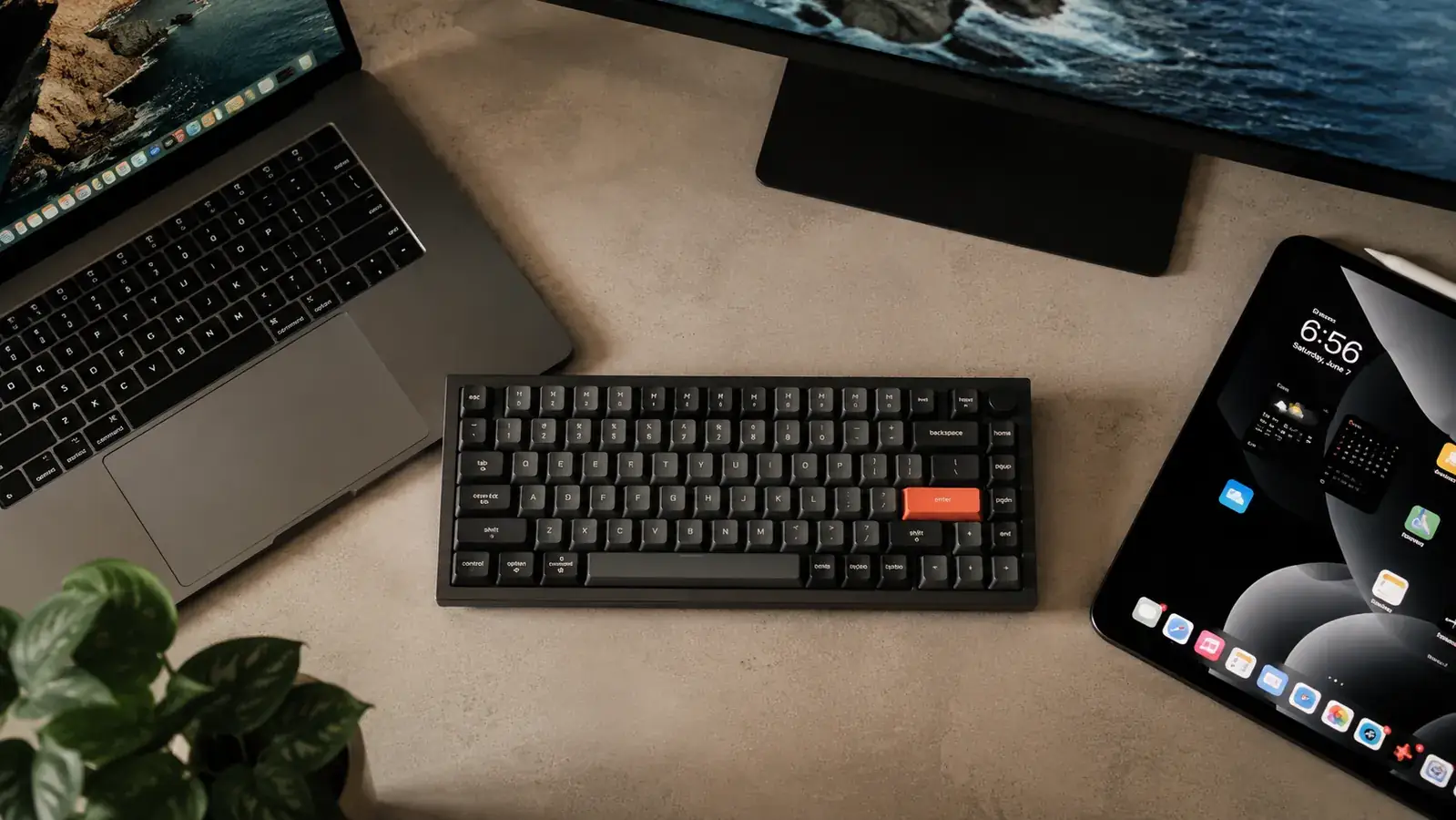
The MX Keys Mini is explicitly a tenkeyless keyboard. It ships without a number pad, and Logitech made that decision on purpose. If you work in accounting, finance, or any role that involves entering numbers into spreadsheets for several hours a day, stop reading now and look at the full-size MX Keys instead. For that specific use case, this keyboard is the wrong tool.
For everyone else, the benefit is real. Removing the number pad moves your mouse about four inches closer to your body's center line. If you spend hours a day reaching right to grab your mouse and returning to the home row on the keyboard, that four inches adds up over a year. My right shoulder and upper trap were noticeably less tight after a month of using this keyboard compared to the full-size keyboard it replaced. I cannot prove causation, but the timing matched.
What I Liked
- Spherical concave keycaps genuinely reduce typos, not marketing copy
- Battery life with backlight off approaches 70 days in real use
- Multi-device Bluetooth switching is fast and reliable across Windows and macOS
- Tenkeyless design moves the mouse 4 inches closer to center, reducing shoulder reach
- USB-C charging is modern and consistent with the rest of a current home office setup
- Smart backlight proximity sensor works well in dim conditions
- Build quality feels dense and purposeful for the price
- Keycap legends show no visible wear after 12 months of heavy use
Where It Falls Short
- No USB receiver in the box. Bluetooth-only out of the box is a problem if your system has weak Bluetooth
- Function row keys default to media and brightness shortcuts. Swapping to F1-F12 requires holding Fn or changing defaults in Logi Options Plus
- Light actuation force means heavier typists may feel less feedback than they prefer
- No number pad, period. If you need one, this is not your keyboard
- At full backlight brightness, battery life drops to around three weeks
Logitech Options Plus Software
Logitech's companion software is optional but worth installing. It lets you remap every key, set per-app shortcuts, adjust the backlight brightness threshold, and check the battery level. The interface is clean and does what it claims. I use it to flip the function row to F1-F12 behavior by default, which matters if you are in Excel or any software that relies on function key shortcuts. Without changing that setting, the top row defaults to volume, screen brightness, and media controls. Many people prefer those defaults. I do not. Options Plus makes it a 30-second fix.
The software also enables Logitech Flow, which lets you copy text or a file on one machine and paste it on another if both are connected to the internet and running Logi Options Plus. I have used this feature a handful of times. It works. It is not the reason to buy this keyboard, but it is a genuine bonus that occasionally saves five steps.
Who This Is For
This keyboard is the right fit if you type for a living or close to it, work across two or three devices in the same session, want wireless with serious battery life, and would rather have a quieter desk than a louder one. Writers, developers who prefer a quieter office environment, project managers, and remote workers who hop between a personal laptop and a work machine are the people this keyboard was designed around. After a year of daily use, I think Logitech got the brief right.
Who Should Skip It
If you want a mechanical keyboard with audible tactile feedback, this is not it. If you enter data into spreadsheets or accounting software and rely on a number pad daily, this is not it. If your workstation does not have reliable Bluetooth and you do not want to buy a separate Bolt USB receiver, this is also not it. And if your budget is firmly in the lower range, there are decent wireless keyboards at that price point that cover the basics without the MX Keys Mini's feature set. You are paying for the concave keycaps, the multi-device switching, and the build quality, and those are genuinely worth the premium if they match what you do.
A year in, this keyboard is still the first thing I recommend to remote workers who type all day.
The Logitech MX Keys Mini pairs to three devices, charges via USB-C, and has a battery life that measured close to Logitech's 70-day claim with the backlight off. If your current keyboard is making your wrists work harder than they need to, this is the practical upgrade to look at first. Check today's price and current availability on Amazon.
Amazon Check Today's Price on Amazon →