

I type roughly 50,000 words a month between client work, internal docs, and article drafts. That is not a brag. It is context for why I care about keyboard honesty more than most reviewers do. When I see a keyboard get 4.5 stars across four thousand reviews and a marketing page full of phrases like 'perfect typing feel' and 'designed for the modern professional,' my first instinct is to find the asterisks. The Logitech MX Keys Mini has them. None of them are deal-breakers for the right buyer. But if nobody tells you what they are, you will buy this keyboard for the wrong reasons and write a one-star review six weeks later.
This is not the review where I walk you through a year of daily use impressions. That piece already exists on this site. This one is about the specific things the MX Keys Mini listing page never tells you, and the profile of buyer who will regret this purchase versus the one who will use it for years without complaint. Let me start with the most misunderstood part of this keyboard.
The Quick Verdict
A genuinely excellent compact keyboard for light-to-moderate typists who want wireless convenience and a clean desk. Not for heavy typists who need tactile feedback, full F-key access, or a numpad they use daily.
Amazon Check Today's Price →Still a top pick for the right desk setup. Check if the MX Keys Mini is what you actually need.
At a premium price point, this is not a casual impulse buy. Read this review to the end first. If it still fits, the current Amazon price is worth checking.
Amazon Check Today's Price on Amazon →The Function Row Trade-Off Nobody Explains Clearly
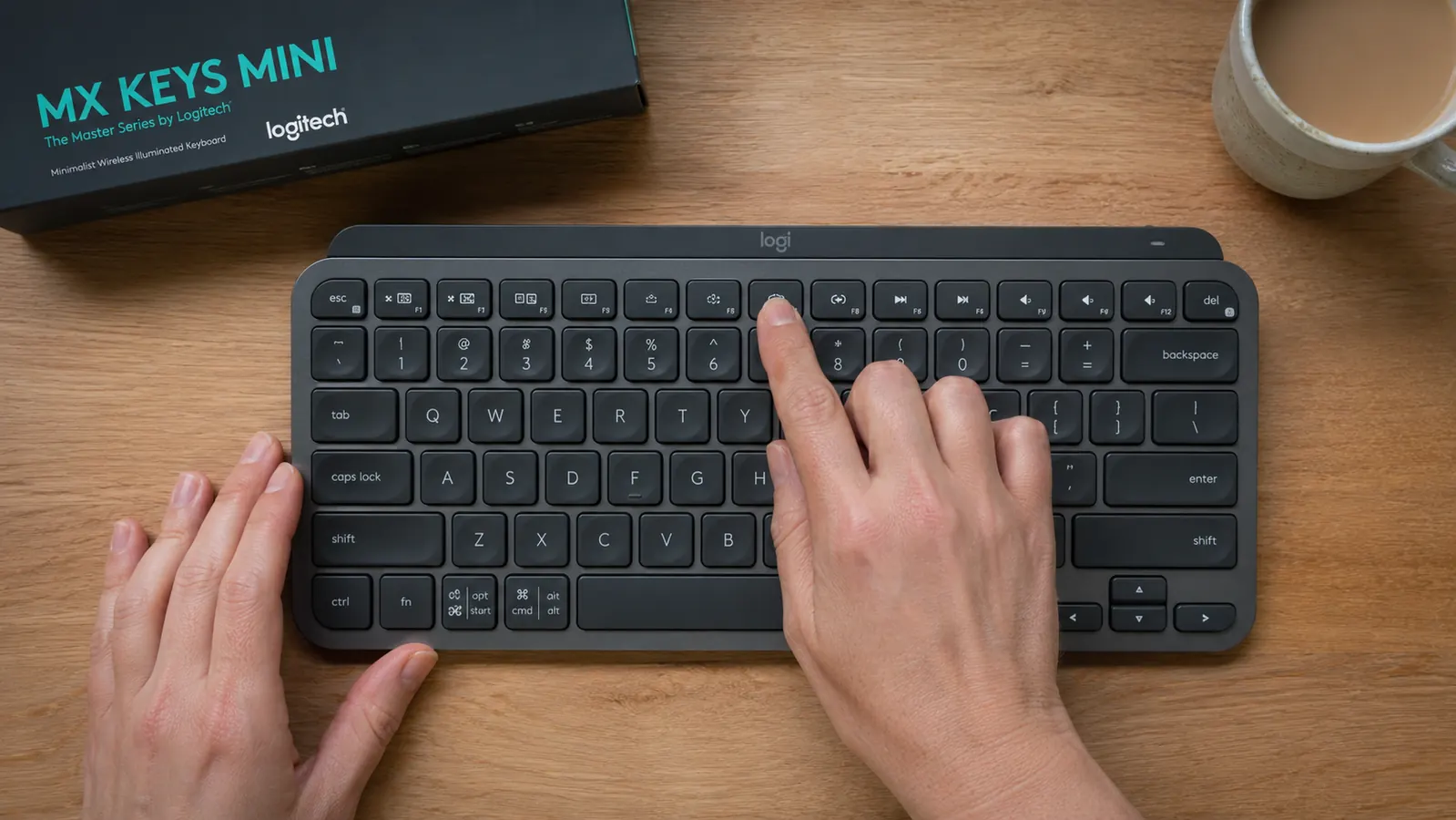
The MX Keys Mini has a function row. Every key from F1 to F12 is there. What the listing page does not tell you clearly is that those keys are secondary functions by default. In their primary state, right out of the box, the top row controls media and OS shortcuts: brightness, volume, mission control, screenshot, and so on. To get the actual F1 key to fire, you hold the Fn key first, or you go into Logi Options+ software and flip the behavior globally.
For most home office workers watching videos, adjusting volume, and bouncing between apps, the default layout is actually smarter. But if you work in software development, use IDE shortcuts that depend on F5 through F12, or run any workflow that calls raw function keys more than twice an hour, this keyboard will slow you down. Not dramatically. But enough to be annoying every single day. The workaround of holding Fn for every F-key press adds a physical complexity that compounds over hundreds of keystrokes.
You can flip this in Logi Options+ software permanently, but that leads to the next issue: Logi Options+ is required software for any meaningful customization, and it runs as a background process. On a clean Mac or Windows machine this is minor. On a work machine where IT controls software installs, you may not be able to install it at all. Know this before you buy.
Key Travel: What 1.8mm Actually Feels Like Under Your Fingers
The MX Keys Mini uses low-profile scissor switches with 1.8mm of key travel. For comparison, a standard mechanical keyboard runs 4mm or more. That difference is not theoretical. It is the single most divisive aspect of this keyboard among frequent typists, and it is the one thing I wish someone had described concretely before I put money down.
Here is what 1.8mm feels like: each keystroke bottoms out quickly and quietly. There is almost no resistance on the way down, a soft cushioned landing, and almost no audible click. The keys feel solid and not mushy, which is different from cheap laptop keyboards. But the keystroke is short. If you are used to typing on a mechanical keyboard and you expect to feel the key under your finger before it actuates, you will find yourself bottoming out on every single stroke. Some typists adapt to this within a week. Others never stop noticing it.
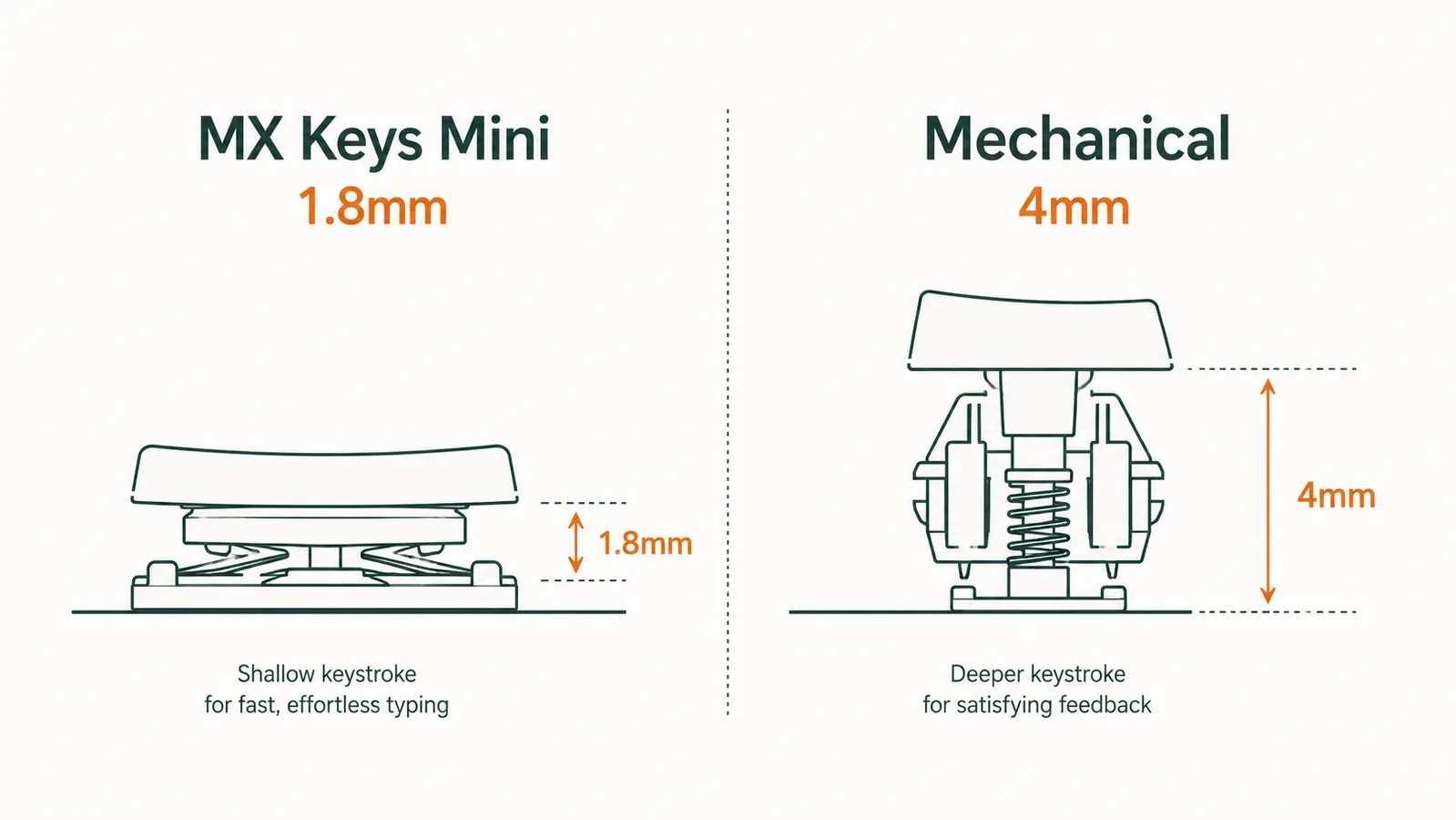
The spherical concave dish on each keycap is real and genuinely useful. Each key has a small bowl that centers your fingertip, which reduces missed keystrokes at the edges. This is one of the MX Keys Mini's best features and one where Logitech's design team actually earned the premium price. But the key travel is polarizing. If you are currently typing on a MacBook Air or a Dell laptop keyboard, the MX Keys Mini will feel noticeably better. If you are coming from a mechanical board, it may feel worse.
The keys feel solid and not mushy, which separates this from cheap laptop keyboards. But if you expect to feel the key resist before it fires, 1.8mm will throw you off every single day.
Bluetooth Pairing: The Lag Is Real, It Has a Cause, and Here Is How to Think About It
The MX Keys Mini connects via Bluetooth or Logitech's USB Logi Bolt receiver. Reviews consistently mention a Bluetooth reconnect lag: when you switch devices using the three Easy-Switch buttons on the keyboard's top edge, or when the keyboard wakes from sleep after sitting idle, there is a pause before the connection re-establishes. On Bluetooth 5.1 this is typically one to three seconds. On the Logi Bolt receiver, it is nearly instant.
The Logi Bolt receiver is included in the box. If you are connecting this keyboard to a single computer, plug in the receiver, use the Bolt connection, and you will likely never experience the pairing lag people complain about. The lag is almost entirely a Bluetooth-specific behavior. If you are planning to use this keyboard across three devices and switch frequently throughout the day, the Bluetooth reconnect pause will become a genuine friction point. The device-switching is the headline feature on the marketing page, and it works, but it is not instantaneous.
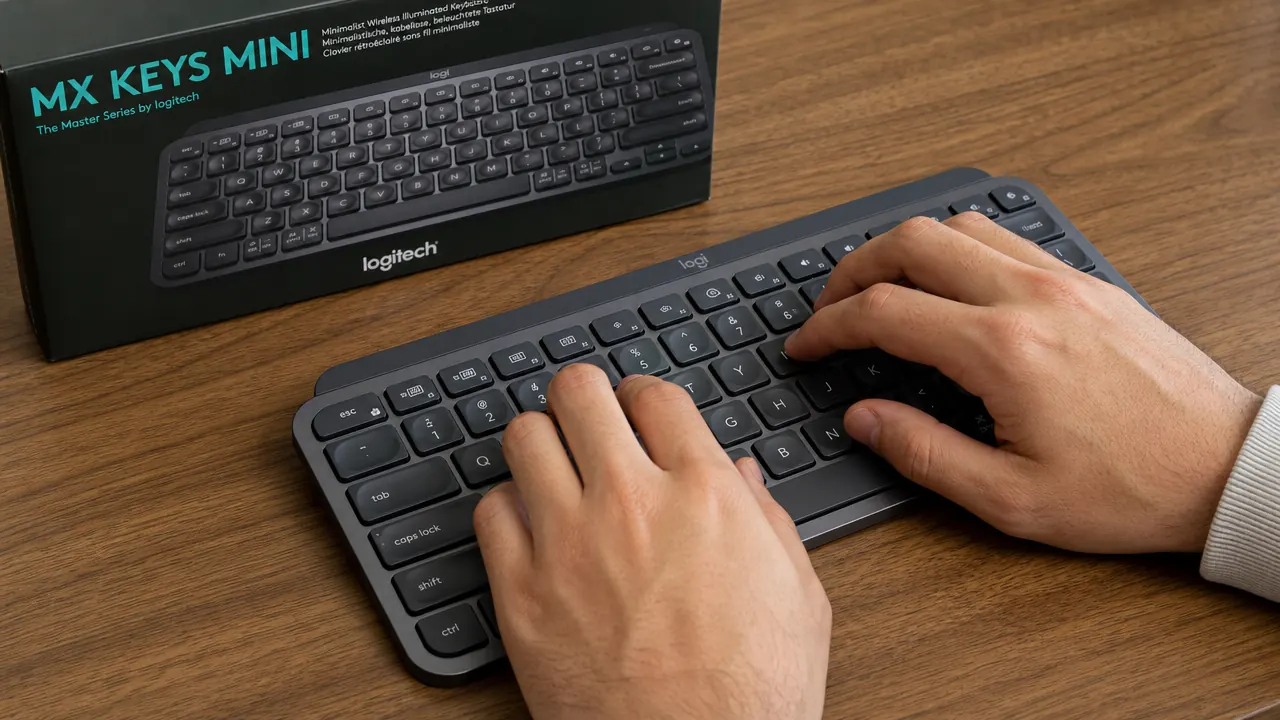
One more pairing note that never appears in the listing copy: the MX Keys Mini does not have dedicated numpad keys. This is obvious from the product photos, but buyers coming from full-size keyboards consistently underestimate how often they use a numpad until it is gone. If you regularly enter numbers, run financial spreadsheets, or use numeric shortcuts in any application, the absence of a dedicated number pad means either switching to the top number row or buying a separate numpad. The keyboard is called 'mini' for a reason. Just make sure you have counted the cost.
The Backlight Sensor: Smarter Than It Needs to Be, and Not Always in a Good Way
The MX Keys Mini has a proximity sensor and an ambient light sensor. The backlight turns on when your hands approach the keyboard and adjusts brightness based on the room's light level. In a dim room late in the afternoon, this is a feature that feels almost thoughtful. In a bright room, it dims the backlight so far that you may not notice it at all.
The issue is responsiveness. The sensor triggers the backlight on hand approach, but in bright ambient conditions the backlight stays so dim it provides no visible benefit. Users who bought this keyboard specifically for the backlight and work near a window in daylight hours often report that the backlight is effectively invisible in normal working conditions. You can manually override the brightness in Logi Options+. But again, that requires the software, and the default behavior can surprise you.
The backlight also contributes to battery drain. Logitech rates the MX Keys Mini at up to 10 days with the backlight on, or up to five months with it off. That gap is real. If you work in a normally lit room and do not actually need the backlight, turning it off entirely is the single most effective battery action you can take. Five months of battery is impressive. Ten days with backlight on is acceptable but will require more active charging attention than most wireless keyboard buyers expect.

The Price Question: Is the Premium Price Actually Justified
The MX Keys Mini lists at the high end of wireless compact keyboards and well above the range where most people default when they see 'compact wireless keyboard.' The honest answer to whether the price is justified depends entirely on your context.
For a home office worker who spends six-plus hours a day at a keyboard, the price spread over two or three years of daily use is not a meaningful number. The build quality is solid. The aluminum top plate does not flex. The keys do not wobble. The USB-C charging means no proprietary cables. The multi-device switching works. You are not paying for marketing. You are paying for a well-engineered peripheral from a company that has been making input devices for decades. If this is a long-term desk tool, the price is fine.
If you are furnishing a home office on a tight budget and need a keyboard that is just good enough for email and video calls, you are overpaying. A Logitech K380 at a mid-range price covers multi-device Bluetooth and compact form factor with no meaningful downgrade for light use. The MX Keys Mini's premium features, the aluminum construction, spherical key cups, backlight, and Bolt receiver, are worth the gap only if you will actually use them.
What I Liked
- Spherically concave key cups reduce misstrikes over long typing sessions
- Aluminum top plate feels genuinely solid and does not flex under pressure
- Logi Bolt USB receiver delivers near-zero reconnect lag versus Bluetooth
- USB-C charging means no special cables, charges with whatever is on your desk
- Three-device Easy-Switch works reliably once paired, good for laptop and desktop users
- Compact footprint reclaims real desk space, especially noticeable with a mouse in the right-handed position
Where It Falls Short
- Function row defaults to media keys, requiring Fn hold or software flip for raw F1 to F12
- 1.8mm key travel will frustrate mechanical keyboard users who prefer tactile resistance
- Bluetooth reconnect lag of one to three seconds when switching devices or waking from sleep
- Backlight nearly invisible in bright ambient light unless manually overridden in Logi Options+
- No numpad, and the number row does not fully replace it for spreadsheet-heavy workflows
- Logi Options+ software required for meaningful customization; may not be installable on managed work machines
Who This Is For
The MX Keys Mini earns its rating for a specific kind of home office worker: someone who types moderate to heavy volume in a clean, relatively lit environment, uses a Mac or Windows machine where Logi Options+ can be installed freely, values desk real estate, and either uses the Bolt receiver on a single machine or does not mind a brief Bluetooth reconnect when switching between two devices. Writers, content managers, project managers, and anyone coming from a laptop keyboard will likely find this keyboard a genuine step forward. The build quality and typing comfort are real advantages over the cheap wireless keyboards in the budget range.
Who Should Skip It
Skip the MX Keys Mini if you use raw function keys constantly and cannot install Logi Options+ to flip the default behavior. Skip it if you are a mechanical keyboard user who needs tactile feedback to type accurately at speed. Skip it if your daily work involves extensive number entry and you rely on a numpad for efficiency. Skip it if you are budget-constrained and the extra cost over a K380 would be better spent elsewhere on your home office setup. And skip it if you are on a managed enterprise machine where third-party software installs require approval. None of these are product defects. They are real-world use cases where this keyboard is the wrong tool.
If the MX Keys Mini fits your setup after reading this, current Amazon pricing is worth a look.
Logitech's compact keyboards hold value well and rarely see steep discounts. If the price works for your budget, this is a keyboard that earns its desk space for the right user.
Amazon Check Today's Price on Amazon →